
401 Error Troubleshooting
If you encounter one of the following 401 errors, try the appropriate solution below.
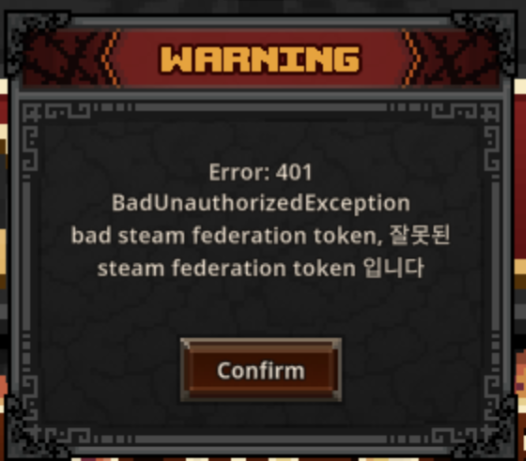
Error 1 – Steam Authentication Failed
Error Message
Error: 401
BadUnauthorizedException
bad steam federation token, 잘못된 steam federation token 입니다
Cause
This error usually occurs when the connection between your Steam account and the game server fails.
Solution
- Completely close the game.
- Exit Steam completely (make sure it is no longer running in the system tray).
- Wait a few seconds.
- Launch Steam again.
- Start the game.
Note: This is not a guaranteed fix, but it has resolved the issue for most affected players.
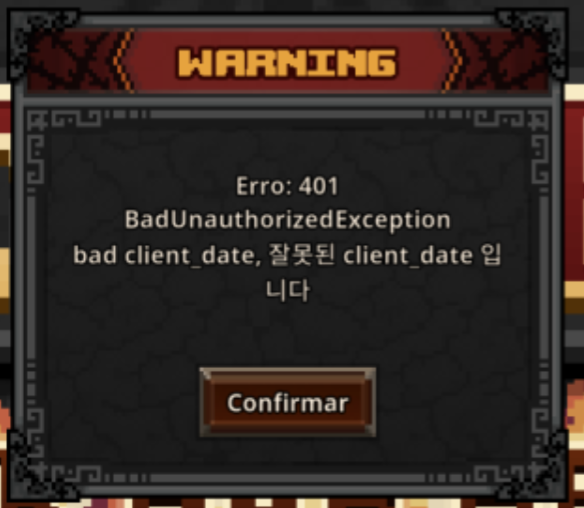
Error 2 – Invalid System Time
Error Message
Error: 401
BadUnauthorizedException
bad client_date, 잘못된 client_date 입니다
Cause
This error occurs when your PC’s system date and time do not match the game server.
Solution
- Open Windows Date & Time Settings.
- Enable Set time automatically.
- Click Sync now to synchronize your system clock.
- Restart the game.
Once your system time has been synchronized, the error should no longer appear.
Recover Save Data from Steam Cloud
If no suitable local backup is available, you may be able to restore your save from Steam Cloud.
Steam Cloud Storage
https://store.steampowered.com/account/remotestorage
Recovery Steps
- Open the Steam Cloud Storage page.
- Check whether any TBH: Taskbar Hero
.es3save files are available. - Download the backup created before the issue occurred.
- Follow the Manual Save Data Recovery guide to restore the downloaded save.
Note: Recovery may not be be possible if the Steam Cloud backup was uploaded after the issue occurred or if the backup itself is already corrupted.
If Recovery Is Still Not Possible
If the problem persists after following the steps above, your backup files may already be corrupted or no longer contain valid save data.
In that case, post a report in the #bug-report channel on the official Discord server and include:
- The recovery methods you have already tried.
- A detailed description of the issue.
- Any screenshots or error messages.
- Any additional information that may help with troubleshooting.
The community Helpers will review your recovery steps and may suggest additional solutions. If the issue still cannot be resolved, they will advise you on the next steps, including contacting the support team if necessary.
Verify the Integrity of Game Files
Unexpected PC shutdowns, network interruptions, or other issues can corrupt game files.
Before attempting any other recovery methods, verify the integrity of the game files through Steam. Steam will compare your installed files with the official versions and automatically download any missing or corrupted files.
How to Verify Game Files
- Open your Steam Library.
- Right-click TBH: Taskbar Hero.
- Select Properties.
- Open the Installed Files tab.
- Click Verify integrity of game files.
Check Steam Cloud Synchronization
If you play on multiple PCs, your save data may not be synchronized correctly depending on your Steam Cloud settings.
For example, if Steam Cloud was disabled on another computer, your latest save may never have been uploaded.
If Steam Cloud Was Disabled
- Completely close the game on the affected PC.
- Launch the game on the PC that still has your correct save.
- Enable Steam Cloud synchronization.
- Wait for synchronization to complete.
- Launch the game again on the affected PC.
If synchronization is successful, your previous save data should become available.
If Steam Cloud Is Enabled
Important: Steam Cloud always synchronizes the most recently uploaded save. If an empty or incorrect save has already been uploaded, it may overwrite valid save data on another PC.
If you believe another PC still contains your original save, do not launch the game on that PC until you have backed up the save files.
Save File Location
%USERPROFILE%\AppData\LocalLow\TesseractStudio\TaskBarHeroBack Up the Following Files
SaveFile_Live.es3SaveFile_Live_1.es3throughSaveFile_Live_5.es3- Any files named:
SaveFile_Live_backup_YYYYMMDD_HHMMSS.es3
After creating a backup, copy the files to the same folder on your current PC and launch the game.
Fixing an Infinite Loading Screen
If the game is stuck on an infinite loading screen, try the following steps before submitting a bug report.
Before You Begin
First, determine which situation applies:
- This is your first time installing and launching the game.
- The game worked previously, and the issue started occurring recently.
If the game worked before, continue with the steps below.
Back Up Your Save Files
Before making any changes, create a backup of your save data.
Save Folder
%USERPROFILE%\AppData\LocalLow\TesseractStudio\TaskBarHeroCopy the entire TaskBarHero folder to a safe location, such as your Desktop. This allows you to restore your data if anything goes wrong.
Verify the Game Files
- Open your Steam Library.
- Right-click TBH: Task Bar Hero.
- Select Properties.
- Open the Installed Files tab.
- Click Verify integrity of game files.
Once the verification is complete, launch the game again.
Try Cloudflare WARP
Some players have resolved infinite loading issues by using Cloudflare WARP.
- Install Cloudflare WARP.
- Connect to WARP.
- Launch the game again.
This may help if the issue is related to network routing or your ISP.
Check Your Antivirus or Firewall
Temporarily disable your antivirus or firewall software and test whether the game loads normally.
If this resolves the issue, add both Steam and TBH: Task Bar Hero to your security software’s exception list before re-enabling protection.
Restore a Backup Save
If the previous troubleshooting steps did not resolve the issue, try restoring one of your backup saves.
Save Folder
%USERPROFILE%\AppData\LocalLow\TesseractStudio\TaskBarHeroLocate a Backup
Look for files such as:
SaveFile_Live_backup_YYYYMMDD_HHMMSS.es3SaveFile_Dev_X.es3.bak
Restore the Backup
- Rename your current save:
SaveFile_Live.es3- to
SaveFile_Live_old.es3
- Choose a backup file to restore.
- Rename the selected backup to:
SaveFile_Live.es3
- Launch the game and check whether the issue has been resolved.
Notes
- Restoring an older save may result in the loss of recent progress.
- Always back up the entire save folder before restoring a backup.
- If multiple backups are available, start with the most recent one.
If the Issue Persists
Please send the following log files to the developers.
Log File Location
%USERPROFILE%\AppData\LocalLow\TesseractStudio\TaskBarHeroRequired Files
Player.logPlayer-prev.log
ZIP compression is not required. These logs will help the development team investigate the cause of the infinite loading issue.
Infinite Loading on First Launch
If the game gets stuck on an infinite loading screen the very first time you launch it, you can try resetting the game’s local data.
Warning: Do not use this method if you have existing save data that you want to keep. Any progress that has not been backed up or synchronized may be permanently lost.
Reset Local Game Data
- Temporarily disable Steam Cloud for TBH: Task Bar Hero.
- Open:
%USERPROFILE%\AppData\LocalLow\TesseractStudio\TaskBarHero- Delete every file except:
Player.logPlayer-prev.log
- Launch the game again.
The game will generate a new set of local files and start as if it were launched for the first time.
After the Game Starts Successfully
Once you have confirmed that the game launches normally, re-enable Steam Cloud.
Save Data Account Mismatch
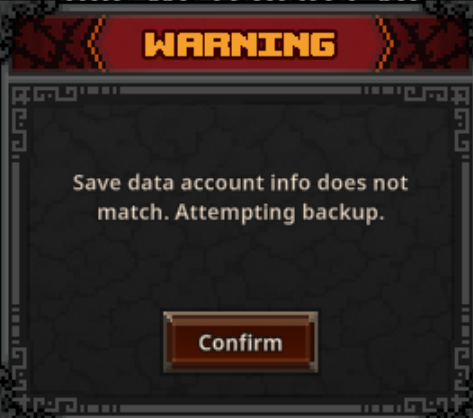
If you see the following warning:
“Save data account info does not match. Attempting backup.”
the game has detected save data created with a different Steam account and is automatically creating a backup to prevent it from being overwritten.
Why This Happens
This usually occurs when multiple Steam accounts are used on the same PC, especially if Steam Cloud is enabled for some accounts but disabled for others.
Recommended Solution
- Make sure you are logged into the correct Steam account.
- If you use multiple Steam accounts, enable Steam Cloud for all of them.
When Steam Cloud is enabled, Steam may display a Cloud Conflict window.
Choose the save you want to keep:
- Cloud Save – The save stored in Steam Cloud.
- Local Save – The save stored on your PC.
Select the version with the correct Modified date.
Important: Before resolving a Cloud Conflict, back up your entire save folder so you can restore your data if necessary.
Restore Save Data Manually
If the previous recovery methods did not resolve the issue, you can try restoring your save data manually.
Before You Begin
Complete the following steps before restoring a backup:
- Fully close the game.
- Launch the game once.
- Fully close the game again.
- Wait approximately one minute.
- Begin the restoration process.
This ensures your most recent progress is saved before you restore an older backup.
Important
- Back up your entire save folder before making any changes.
- Restoring an older save may result in the loss of recently acquired items, crafted equipment, upgrades, or other progress.
- If you continue playing after restoring an older save, Steam Cloud may synchronize the restored save.
Restore Your Save
Save Folder
%USERPROFILE%\AppData\LocalLow\TesseractStudio\TaskBarHeroBack Up Your Current Save
Create a copy of:
SaveFile_Live.es3
Select a Backup
Choose one of the following files:
SaveFile_Live_1.es3SaveFile_Live_2.es3SaveFile_Live_3.es3SaveFile_Live_4.es3SaveFile_Live_5.es3SaveFile_Live_backup_YYYYMMDD_HHMMSS.es3
Select the backup created closest to the time before the issue occurred.
Restore the Backup
- Delete or rename the current
SaveFile_Live.es3. - Rename the selected backup to:
SaveFile_Live.es3
- If the file ends with
.bak, remove the.bakextension so the filename ends with.es3. - Launch the game.
If the issue is not resolved, repeat the process using a different backup.
Error 500 (Internal Server Error)
If you encounter the following error:
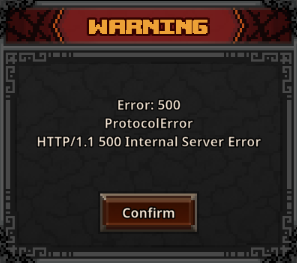
Error: 500
ProtocolError
HTTP/1.1 500 Internal Server Error
this is usually caused by a temporary communication issue between the game client and external services (such as Steam), rather than a problem with your save data.
In many cases, the issue resolves itself after a short period of time.
Troubleshooting
Restart Steam
- Completely exit Steam.
- Launch Steam again.
- Start the game.
Reinstall the Game
- Uninstall the game.
- Completely exit Steam.
- Sign in to Steam again.
- Reinstall the game and launch it.
If necessary, repeat the process or install the game on a different drive.
Check Your System Time
Make sure your system’s:
- Date
- Time
- Time zone
are correct, and enable automatic time synchronization.
Check Your Firewall or Antivirus
- Remove any firewall rules related to
TaskBarHero.exe. - Alternatively, temporarily disable your firewall or antivirus software for testing.
- Restart your PC and try launching the game again.
Try Cloudflare WARP
Some players have reported that using Cloudflare WARP resolved connection-related issues.
Update Your System
Make sure the following components are up to date:
- Windows
- Graphics drivers (NVIDIA, AMD, or Intel)
- ASUS Armoury Crate (if applicable)
Also verify that:
- TCP/IPv4 is configured to obtain its settings automatically.
- Your DNS cache, Winsock, and TCP/IP have been reset if necessary.
Immortal Item Synthesis
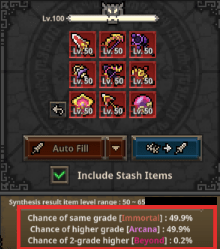
Starting with the Immortal rarity, synthesizing 9 items of the same rarity no longer guarantees an item of the next rarity tier.
Unlike lower rarity tiers, Immortal synthesis has multiple possible outcomes:
- You may receive an item of the next higher rarity.
- You may receive another item of the same rarity.
This is an intended game mechanic and not a bug.
Where to Check the Success Rates
Before confirming a synthesis, the game displays the exact success rates and outcome probabilities at the bottom of the synthesis window.
Be sure to review these probabilities before proceeding with the synthesis.
Trade Ship Access Blocked (Error 403)
If you receive a message such as:
“Trade Ship access has been blocked due to detected abnormal activity.”
or encounter a 403 error when accessing the Trade Ship, your account has been temporarily or permanently restricted from using the Steam Marketplace.
Why This Happens
The game automatically applies restrictions when abnormal activity is detected, including:
- Creating or obtaining items through unauthorized methods.
- Using unauthorized software, cheats, or exploits.
- Other activity detected by the game’s anti-cheat system.
Possible Restrictions
Depending on the results of the investigation, the restriction may affect:
- Access to the Steam Marketplace (Trade Ship) only.
- Your entire game account.
Login Failed
If you receive a “Login Failed” error when launching the game, it may be caused by multiple game clients attempting to connect from the same network.
Possible Cause
Based on player reports, this issue most commonly occurs when two or more game accounts are running simultaneously from the same IP address.
While the exact cause is still under investigation, this is currently the most likely explanation.
Multi-Client Support
TBH: Task Bar Hero is designed for a one PC, one game client environment.
Running multiple game clients at the same time is not officially supported and may result in login failures or other unexpected issues.
Troubleshooting
- Completely close all running TBH: Task Bar Hero clients.
- Make sure only one game client is running.
- Launch the game again.
If you are already using a single game client and the issue persists, you can try Cloudflare WARP.
Some players have reported that enabling WARP resolved the login issue. While this is not an official solution, it may help depending on your network environment.
Be the first to comment