
Almost every gaming PC has one of these folders. Half the files are called something like Recording 2023-04-11, the settings were whatever the recorder had by default, and nobody’s opened them in ages. Scroll down a bit, though, and a few are still good. A last-second escape. A lucky hit from across the map. That round a friend still brings up. The moment holds up fine. The footage, less so.
Put those clips straight into a new highlight reel and the difference jumps out right away. Beside anything recorded this year they look soft and a little choppy. The good news is that a couple of quick passes can close most of that gap. Here’s the whole process, tried on one real clip from start to finish.
Pick the Moment, Keep the Original
Don’t try to fix the whole folder in one go. Just grab one clip. Go for a moment that’s fun to watch, like a clean hit, a near miss or a silly crash, something people get within a couple of seconds.
Then copy it. The original goes somewhere safe and stays untouched, and every trim or upscale happens on the copy.
The clip used here is a round of Smash Karts, a free browser kart game full of rockets, smoke and a busy HUD, recorded on a laptop with the Windows Snipping Tool. It isn’t actually old. So, to get close to how older clips were usually saved, the working copy was exported at 720p, 30 fps and a fairly low bitrate.
Trim It Before Anything Else
This is the step people skip, and it’s the one that saves the most hassle. A raw clip nearly always carries dead time at both ends. Driving around, a menu, the scramble to hit save. Cutting that first keeps the enhancer working only on the part that matters.
Cut down to the moment plus a second or two either side. Highlight reels move fast anyway. Here the 37-second recording came down to 10 seconds: a couple of quick turns, then another kart lands a lob grenade and the smash that follows. The browser tabs at the top got cropped off on the way, leaving a 1500×720 clip.

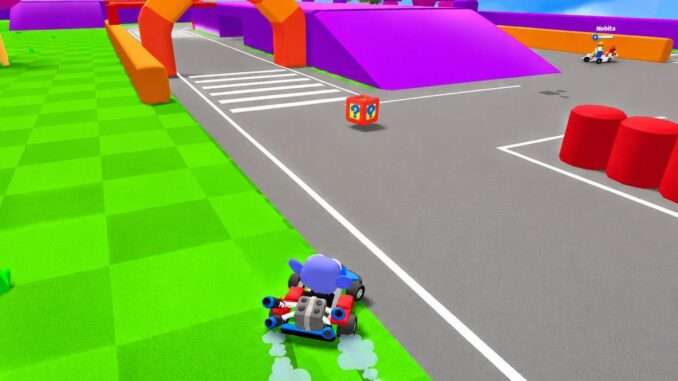
A frame from the trimmed clip, before any processing.
Why Wink for This Job
For the enhancement part, Wink did the work. It’s Meitu’s editing app, and it runs in a browser, on desktop and on phones. Two things made it a good match. Its upscaler has fixed output levels, so there’s nothing to fiddle with. And it has an AI Frame Interpolation tool, handy when an older clip was saved at a lower frame rate than the rest of the reel. Both work on the video file only, so the game itself and your hardware stay out of it.
Upscaling the Clip to 1080p
The trimmed clip went into Wink’s tool to upscale videos to HD. There are four levels: 1080p HD, 2K UHD, 4K Ultimate and 8K Master. 1080p HD made the most sense, because that’s where most highlight reels end up on YouTube and social apps. One click on Start, a few seconds of waiting, and the 1500×720 clip came back as a 2250×1080 file.
The same frames were then pulled from both files, zoomed in, and played at normal speed a few times. The HUD is where the upscale shows best. Leaderboard names like GripThrottle and NimbleNova picked up cleaner edges, the score numbers lost their fuzz, and the rank and timer at the top looked properly crisp. During the turns the kart and track lines stayed steady, with no new smearing or shimmer.
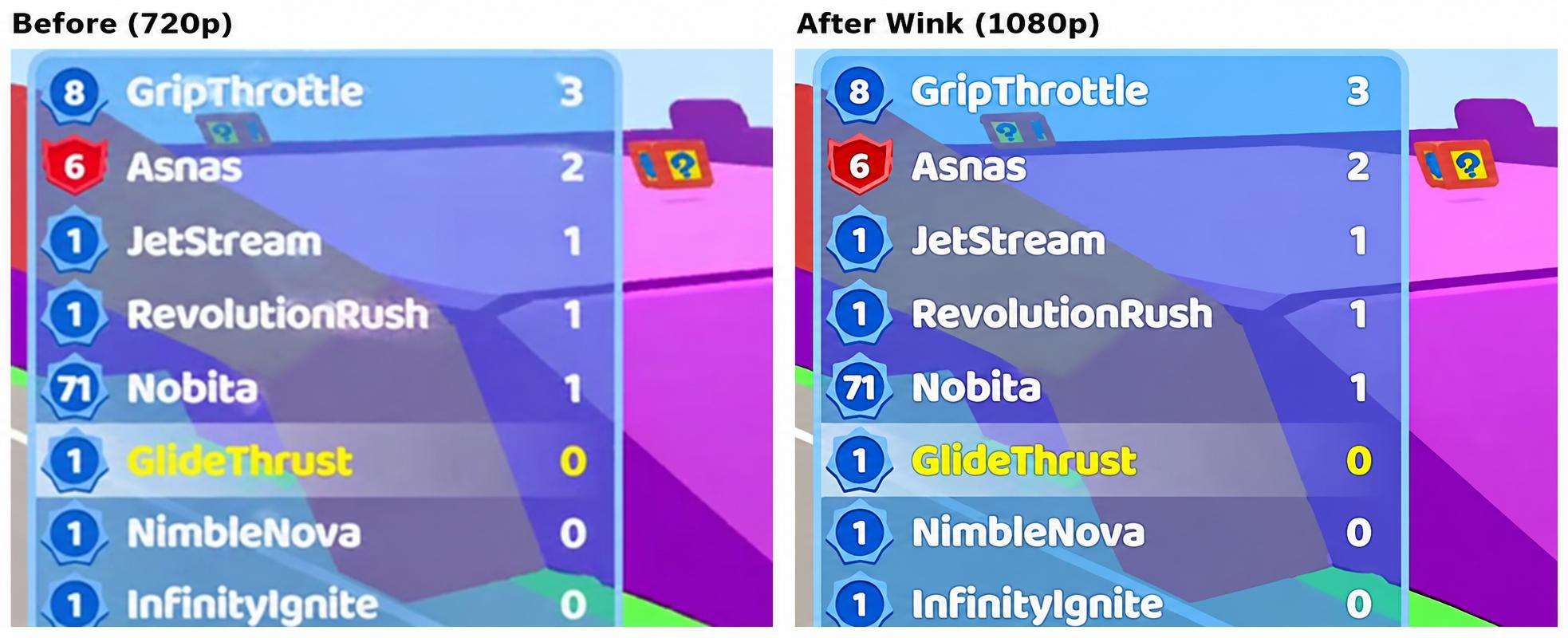
The HUD leaderboard before and after Wink’s 1080p upscale.
Smoother Motion With AI Frame Interpolation
Older clips are often 30 fps or lower. Put one beside 60 fps footage in the same reel and the jump is easy to spot, especially in fast turns. Wink’s AI Frame Interpolation raises the frame rate by generating in-between frames. It has two modes, Medium – Fluent and High – Smooth. High – Smooth was used here, since fast kart turns are exactly where choppy playback shows most.
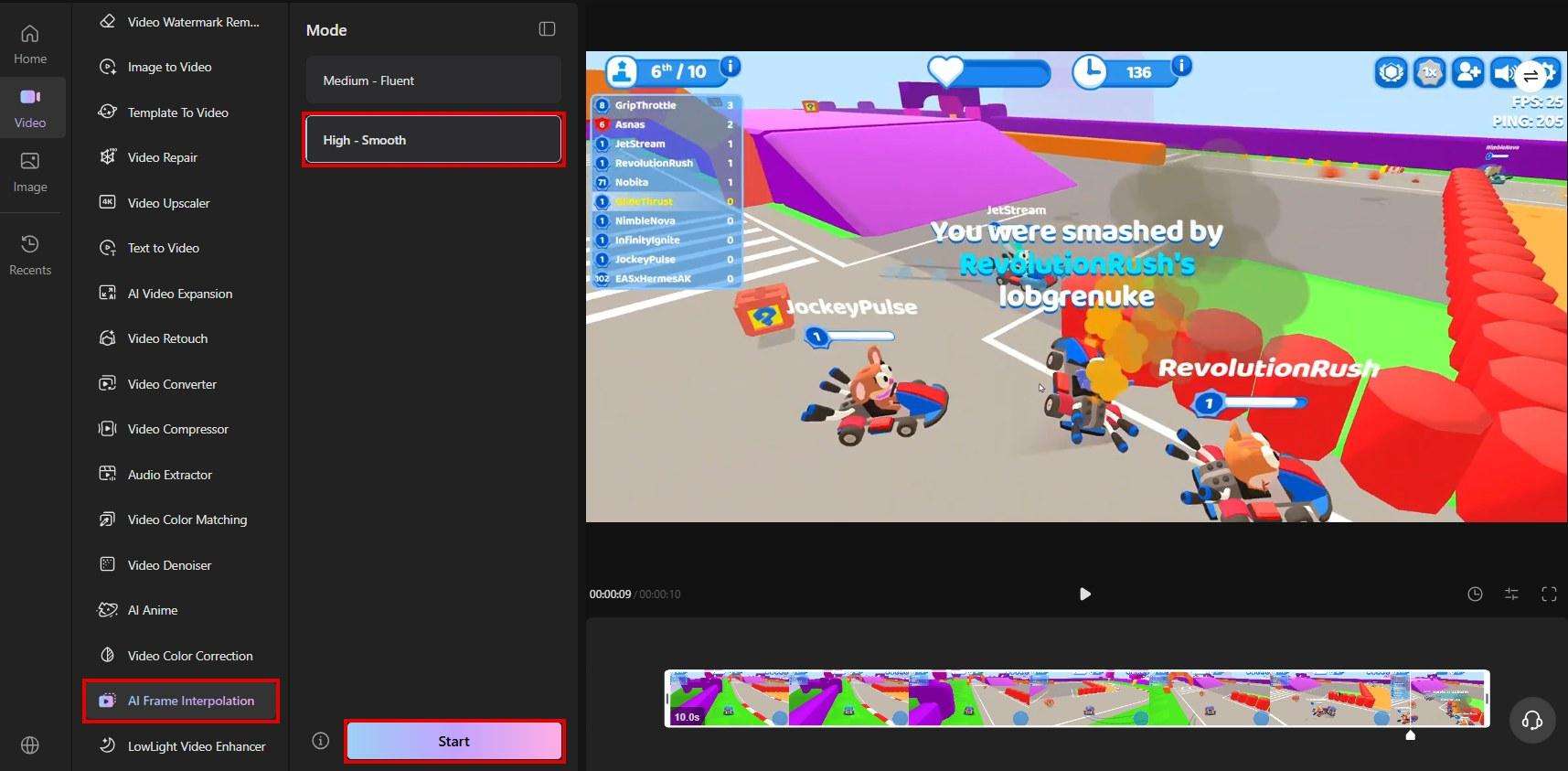
The trimmed clip in Wink’s AI Frame Interpolation tool, with High – Smooth selected.
It took just under two minutes, and the result was a true 60 fps file: 598 frames instead of 300, same 10-second length.
| Trimmed clip | After Wink | |
| Upscale (1080p HD) | 1500×720 | 2250×1080 |
| Frame Interpolation (High – Smooth) | 30 fps | 60 fps |
At normal speed the difference is easy to feel. The two quick turns at the start look smoother, and the drift loses that steppy, stuttery feel. Step through it frame by frame and you can see what’s happening: Wink slips a new frame between each original pair, so the kart and the track move in smaller, more even steps. The frame below is one of those new ones, generated mid-turn, and it sits in the clip as cleanly as the originals.
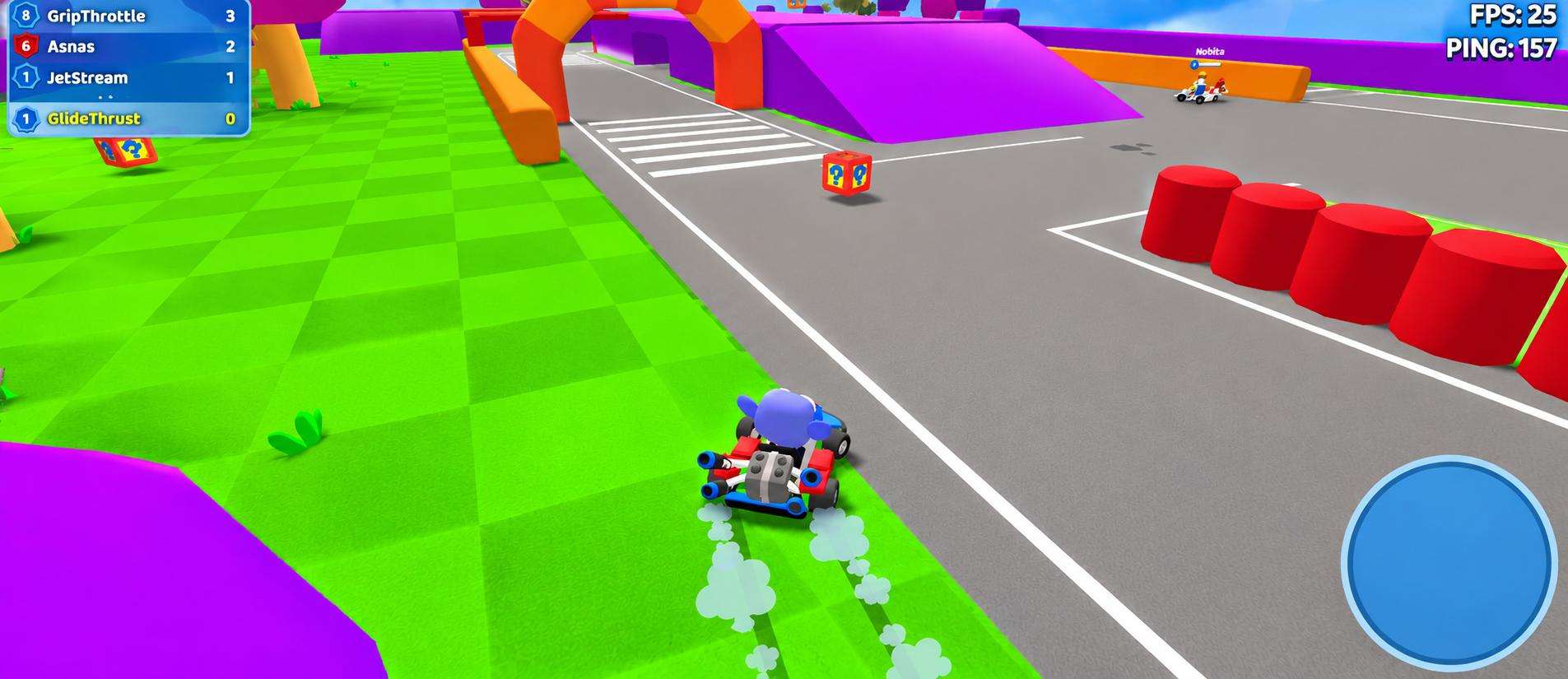
A frame Wink generated between two original frames during the turn.
One tip for highlight reels: if your clip has a hard camera cut, like a respawn, put your edit right at that cut. Interpolation works best on continuous motion, and that’s what most highlights are anyway.
Check It Where It Will Actually Be Posted
A clip that looks good in a preview can look different once a platform squeezes it. So the 1080p version went up as an unlisted video on YouTube, straight from a phone, and was watched there too. YouTube kept it at 1080p, and that option showed up in the quality menu. The HUD names and the smoke held up after upload too, looking pretty much like the Wink file. No extra blockiness on the grenade hit either.
One more check before anything goes public: the game publisher’s rules on gameplay videos, plus the platform’s rules on music and monetisation. Most games are fine with clips. Some have conditions.
A Short Checklist for Future Clips
For the next batch of highlights, a few settings will save you a lot of hassle later. If your machine can handle it, record at the same resolution you play at, and match the frame rate too, so 60 if you’re playing at 60. Bump the bitrate up if the recorder has the option. Playing a browser game? Hit F11 first so the tabs don’t end up in the shot. And save the clip right after the moment happens, with a name you’ll still recognise in a month.
Wrapping Up
Old clips get a bit of a pass in a highlight reel. No one’s expecting them to look brand new. Just pick the moment, put the original somewhere safe, trim it down, and do the enhancing last. Here, the 1080p upscale cleaned up the HUD in a few seconds, and frame interpolation took a 30 fps clip to smooth 60 fps. Got a clip that’s worth keeping but looks a bit rough? Running it through Wink is about the easiest way to get it reel-ready.
Be the first to comment