
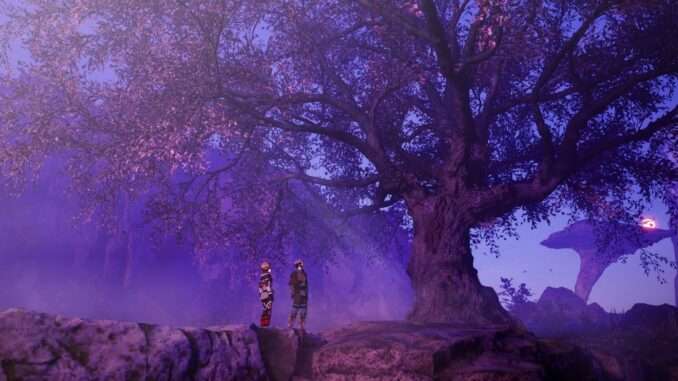
PC Graphics Configuration Guide
Echoes of Aincrad uses Unreal Engine 5, allowing graphics settings to be customized through the Engine.ini file.
How to Edit Engine.ini
- Close the game.
- Press Windows + R.
- Enter the following path:
%localappdata%\EchoesofAincrad\Saved\Config\WindowsClient\Engine.ini
- Open Engine.ini with a text editor.
- Add or edit the desired settings at the bottom of the file.
- Save the file.
- Set Engine.ini to Read Only to prevent the game from overwriting your changes.
Recommended Base Settings
These settings disable several visual effects and improve image clarity.
[SystemSettings]
r.MotionBlurQuality=0
r.DefaultFeature.MotionBlur=0
r.AntiAliasingMethod=2
r.PostProcessAAQuality=2
r.SceneColorFringeQuality=0
r.Tonemapper.Sharpen=1.0
r.MaxAnisotropy=16
r.TextureStreaming=0
r.VolumetricFog=0
r.ViewDistanceScale=2.0
Reduce TSR Blur
If you are using TSR anti-aliasing, add the following settings to reduce image blur.
r.AntiAliasingMethod=2
r.TemporalAACurrentFrameWeight=0.20
r.TemporalAASamples=4
r.TemporalAASharpness=0.75
Disable the Default Upscaling
By default, the game renders at approximately 70% internal resolution before upscaling. Disabling this renders the game at native resolution, resulting in:
- Sharper UI
- Clearer NPC faces
- Improved overall image quality
However, this has a significant impact on performance.
Before using these settings:
- Remove the TSR section above.
- Set
r.AntiAliasingMethod=0(FXAA).
r.AntiAliasingMethod=0
r.ScreenPercentage=100
r.TemporalAA.Upsampling=0
r.DynamicRes.OperationMode=0
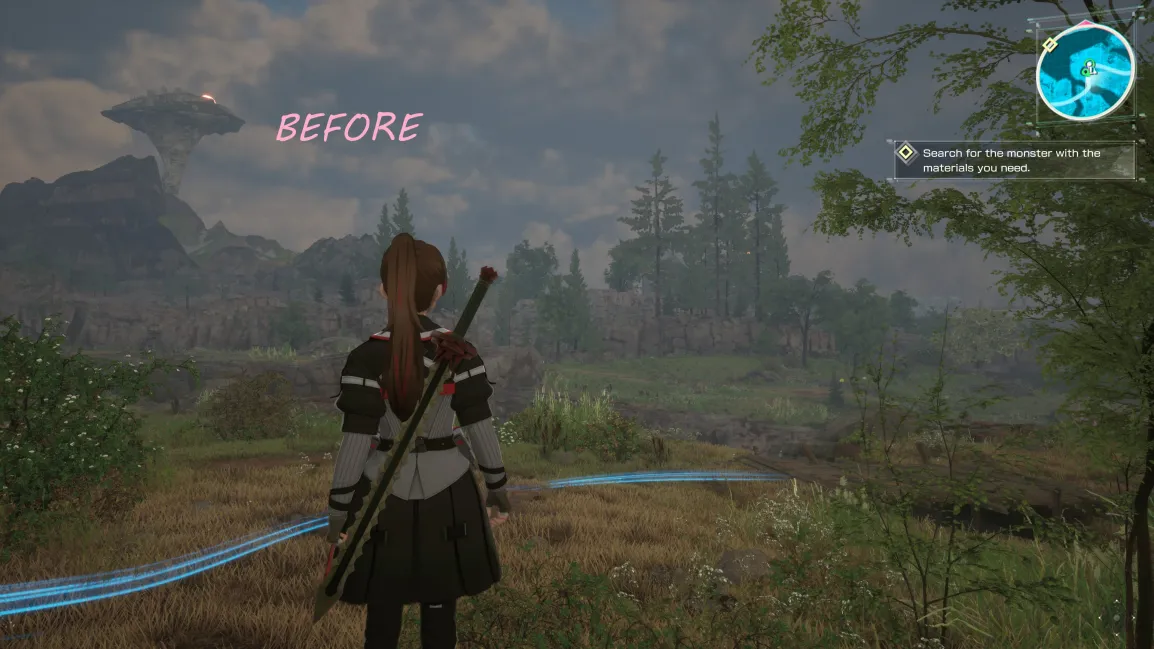
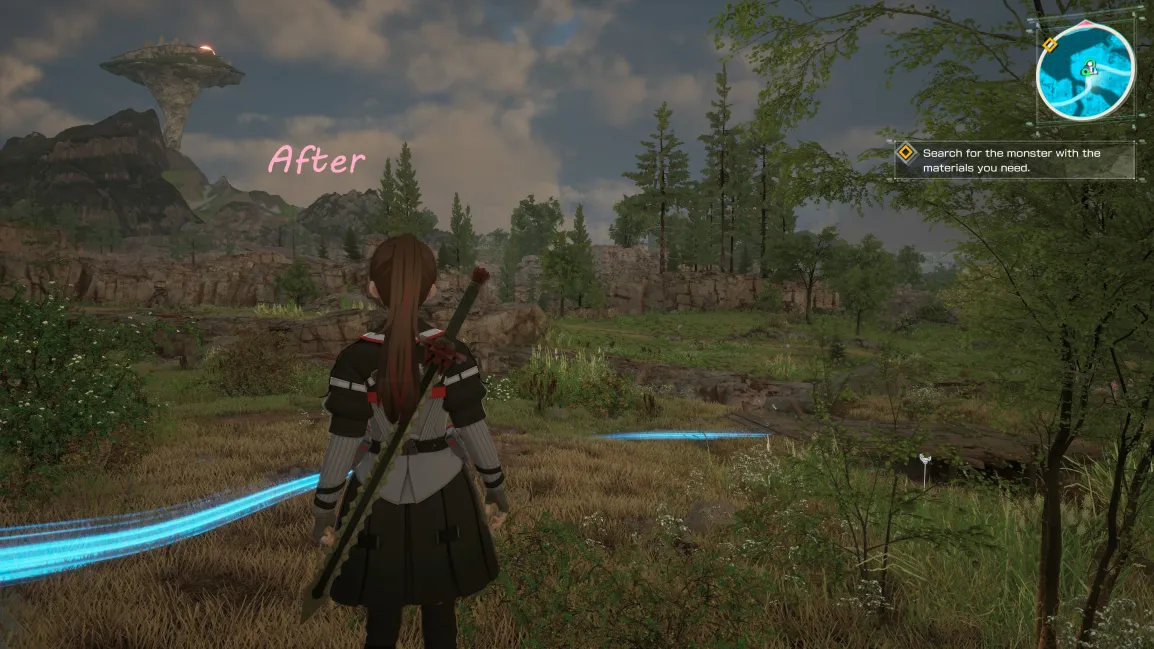
Personal Configuration (Radeon RX 9070 XT)
The following configuration is the author’s personal setup for an RX 9070 XT.
[SystemSettings]
r.MotionBlurQuality=0
r.DefaultFeature.MotionBlur=0

r.PostProcessAAQuality=0
r.SceneColorFringeQuality=0
r.Tonemapper.Sharpen=1.0
r.MaxAnisotropy=16
r.TextureStreaming=0
r.VolumetricFog=0
r.ViewDistanceScale=2.0

r.ScreenPercentage=100
r.TemporalAA.Upsampling=0
r.DynamicRes.OperationMode=0
r.AntiAliasingMethod=0
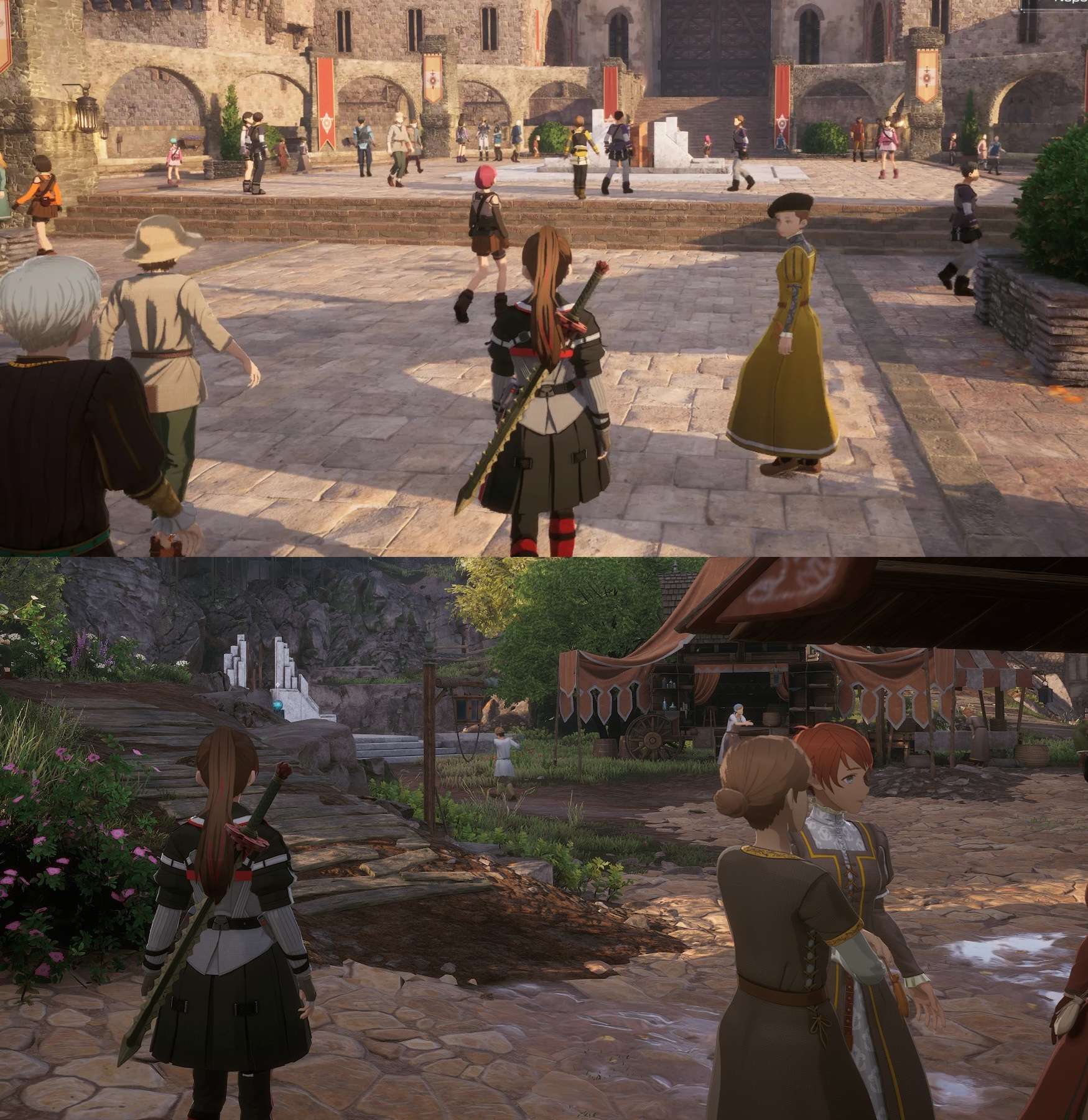
Additional Notes
- Unreal Engine 5 supports many more configurable
.inioptions. Advanced users can further customize graphics quality by editing additional engine settings. - Native rendering (100% Screen Percentage) provides the sharpest image but requires substantially more GPU performance than the default upscaled rendering.



Be the first to comment