

How to Disable Motion Blur and Other FX Settings
If you want to disable motion blur or other visual effects that cannot be disabled through the in-game settings, you can manually edit the game’s configuration file.
Locate the Configuration File
- Open Dolphin or another file manager.
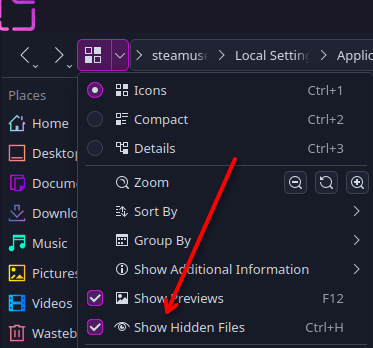
- Enable the option to show hidden files.
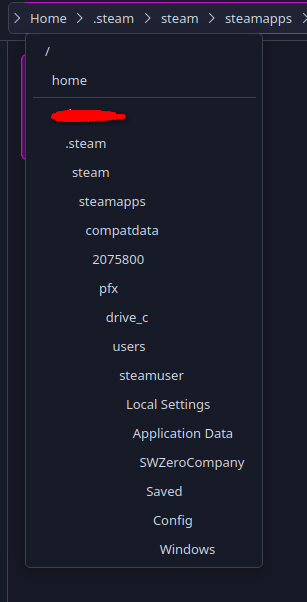
- Navigate to the following directory: /home/”yourpcname”/.steam/steam/steamapps/compatdata/2075800/pfx/drive_c/users/steamuser/Local Settings/Application Data/SWZeroCompany/Saved/Config/Windows
- Find the
GameUserSettings.inifile and open it in a text editor.
Disable the FX Settings
Use Ctrl + F in your text editor to search for any of the following settings:
bScreenShakeEnabled=True
bFilmGrainEnabled=True
bChromaticAberrationEnabled=True
bMotionBlurEnabled=True
To disable an effect, change its value from True to False.
For example, to disable motion blur, change:
bMotionBlurEnabled=Trueto:
bMotionBlurEnabled=FalseYou can do the same for any of the other settings:
bScreenShakeEnabled=False
bFilmGrainEnabled=False
bChromaticAberrationEnabled=False
Save the GameUserSettings.ini file after making your changes.
Linux Users: Config File Location
Linux users can manually edit the game’s configuration file to access settings that are not available in the in-game menus.
Locating GameUserSettings.ini
Your GameUserSettings.ini file is located under the Steam installation path where you installed the game.
Using your preferred file manager, navigate to:
../SteamLibrary/steamapps/compatdata/2075800/pfx/drive_c/users/steamuser/AppData/Local/SWZeroCompany/Saved/Config/Windows/
Here you will find various configuration options that can be changed manually.
Useful Configuration Options
The following options can be set to True or False according to your preferences:
bMotionBlurEnabled=True
bScreenShakeEnabled=True
bFilmGrainEnabled=True
bChromaticAberrationEnabled=True
For example, to disable motion blur, change bMotionBlurEnabled=True to bMotionBlurEnabled=False.
Custom Resolution
You can also manually set the screen resolution using:
ResolutionSizeX=3440
ResolutionSizeY=1440
Set ResolutionSizeX to your desired horizontal resolution and ResolutionSizeY to your desired vertical resolution.
Be the first to comment