

You can limit the frame rate to 60 frames per second using SpecialK software, which is a better option than the Nvidia Control Panel.
Lock FPS + Auto Hide Mouse Guide
SpecialK is a better tool than the Nvidia Control Panel for limiting frame rates to 60 frames per second. It also offers additional features such as mouse hiding and Dualshock controller support.
- 1) Download the latest version of SpecialK from here: sk-data.special-k.info
- 2) Go to your Nier Replicant installation directory:
- steam\steamapps\common\NieR Replicant ver.1.22474487139
- 3) Extract the following files and folders into the Replicant directory: Servlet, PlugIns, SKIF.exe, and finally SpecialK64.dll
Note: Do not extract SpecialK32.dll
- 4) Rename SpecialK64.dll to dxgi.dll
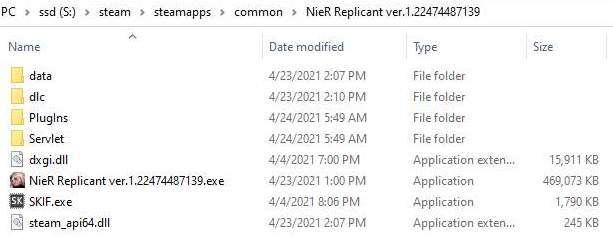
Your Replicant folder should look like so after the above steps:
- 5) Launch the game (Neir Replicant).
- 6) If everything is done successfully, you will get a message from the mod appear on launch. It’s hard to miss.
- 7) Time to lock the fps! Hit Ctrl + Shift + Backspace to open up the control panel while the game is open. You can be in the main menu, in game, doesn’t matter.
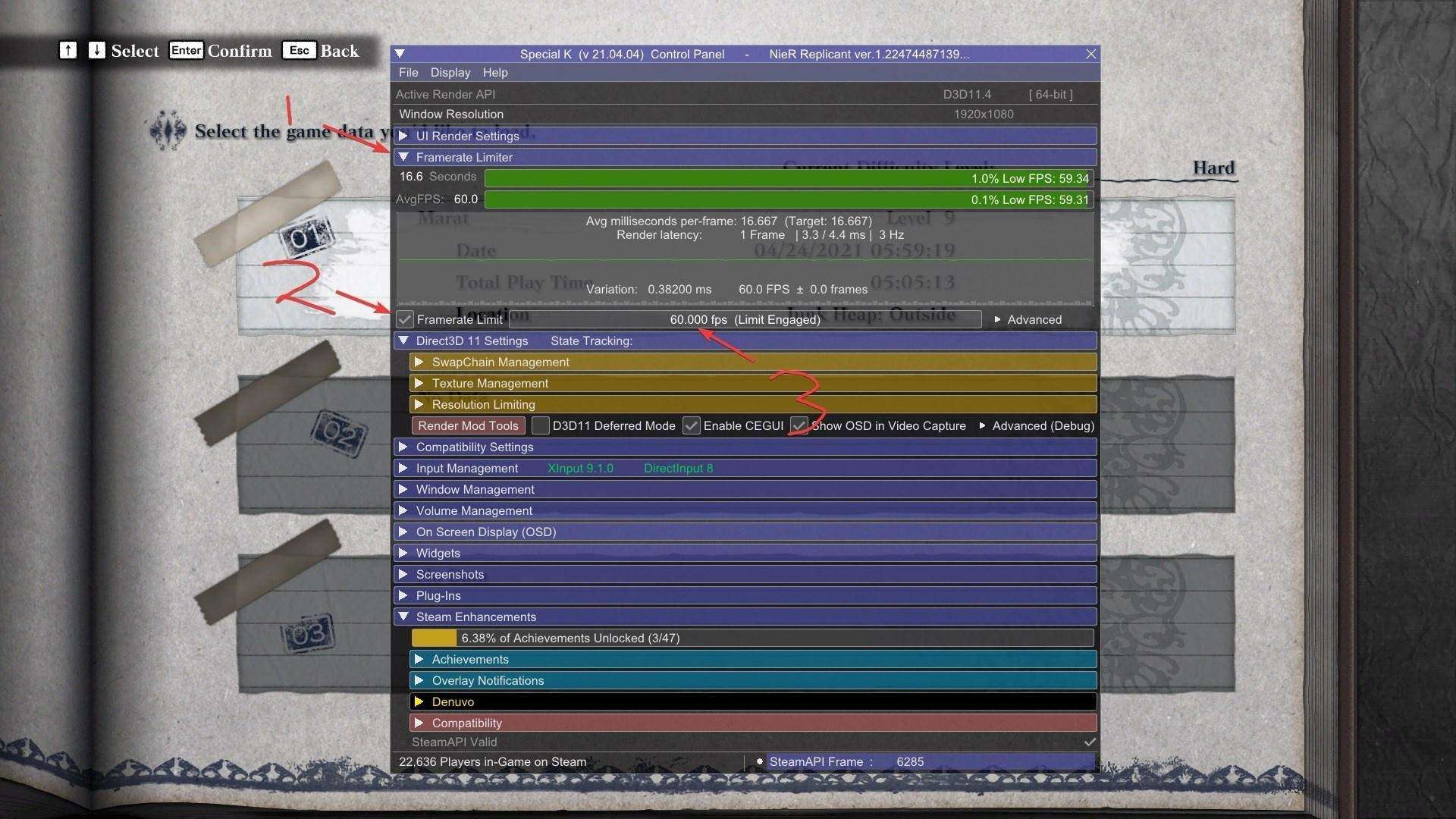
- 8) Now Click Frame Limiter, Check the box that says Frame limit, Double click the box to the right to input a value; enter 60. This is how it all should look. When it says “(Limit Engaged)” next to the 60; we’re done! FPS is now locked at 60! No Extra steps needed to get Playstation controllers working, SpecialK handles all that out of the box!
Bonus: Hide Mouse
Now that SpeicalK is installed, it takes a few seconds to enable automatic mouse hiding.
- Open the SpecialK configuration via Ctrl + Shift + Backspace.
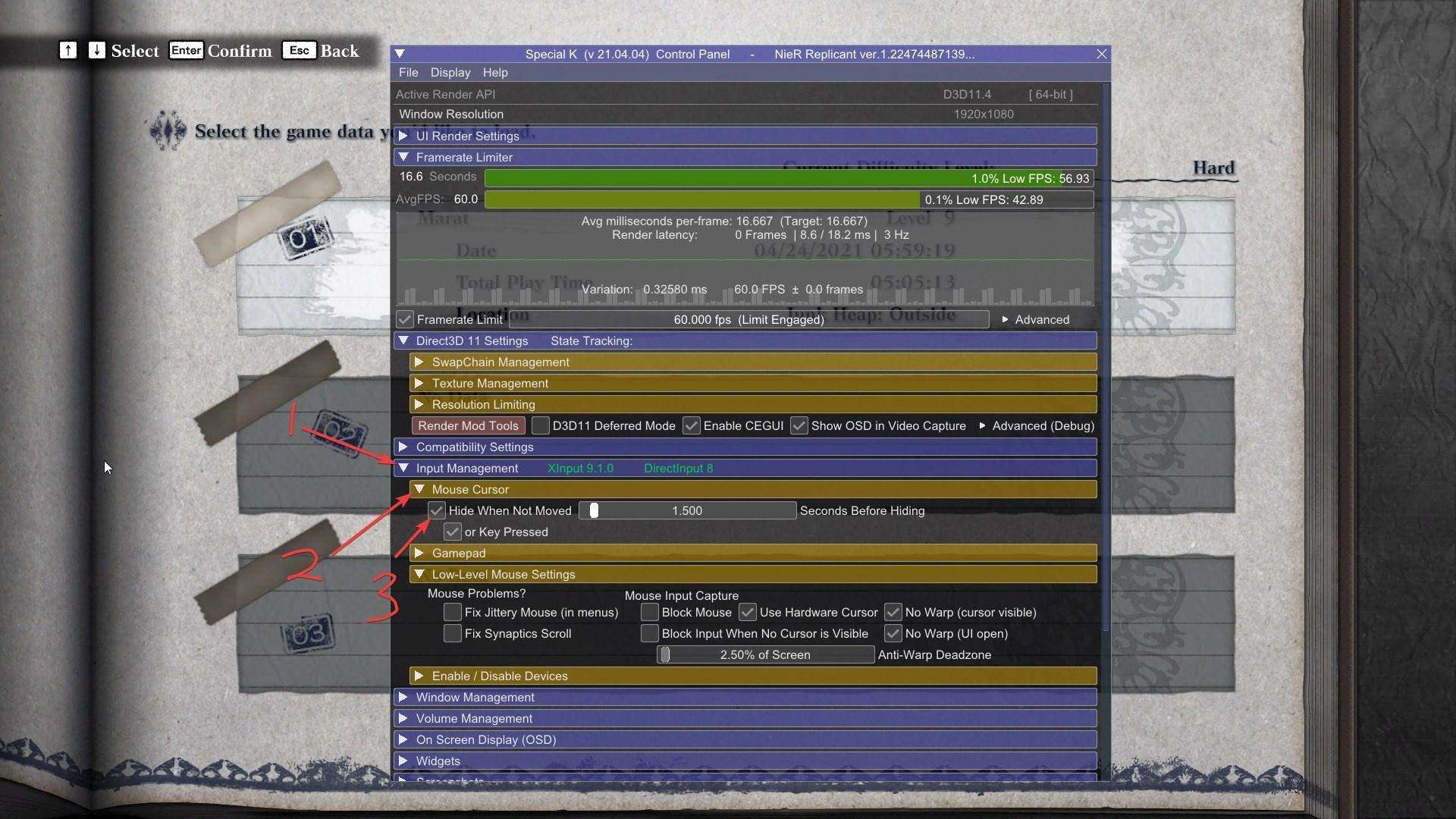
- Click/expand Input Management, then “Mouse Cursor”, and finally check “Hide When Not Moved”
If everything is done successfully, the configuration should look like the image below:

Be the first to comment